
LaTeX Equations
Write LaTeX, watch it typeset live, and drop the equation onto the canvas as crisp vector art.
LaTeX Equations for Drawdy
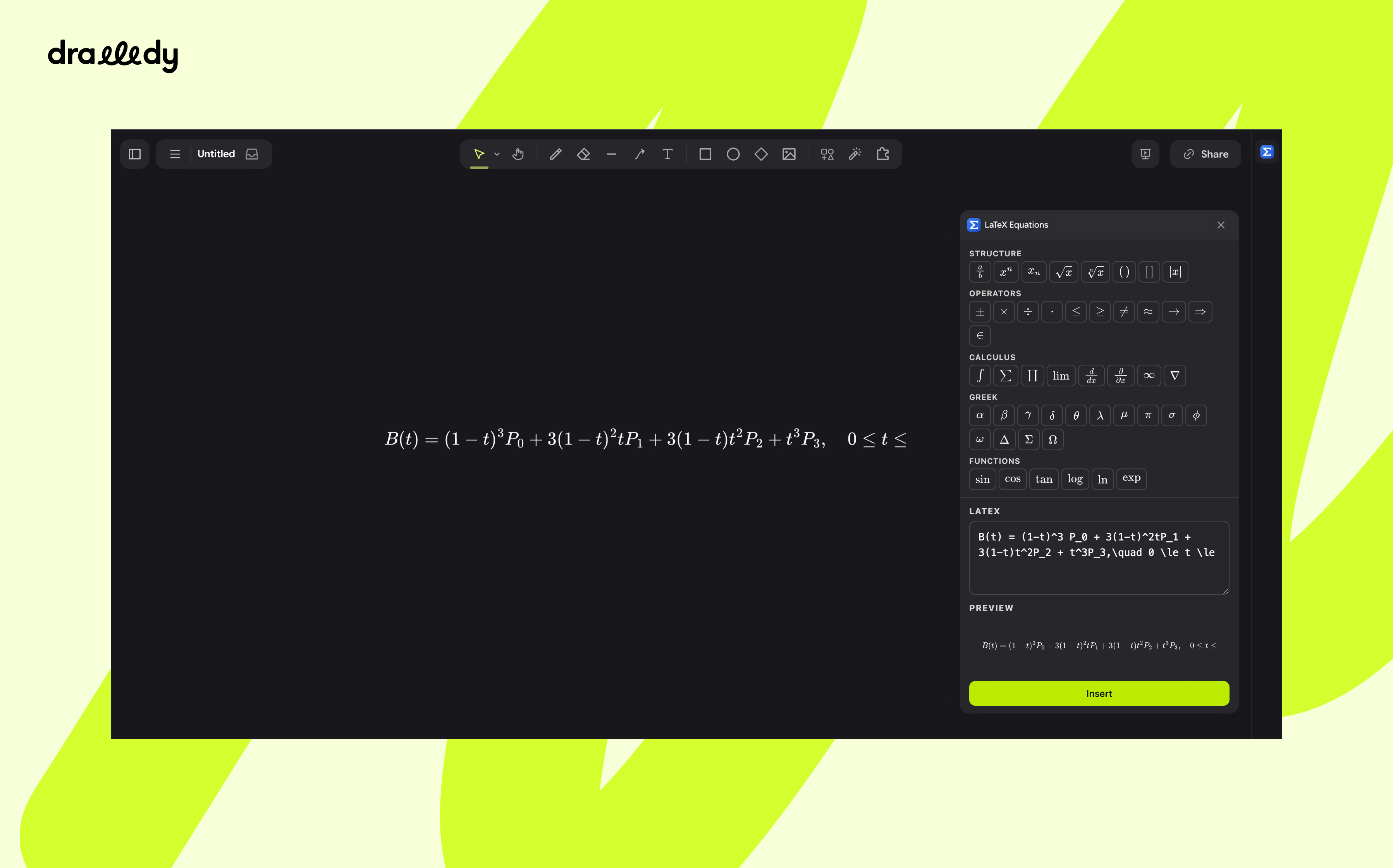
Write LaTeX in the side panel, watch it typeset as you type, and drop the result onto your board as crisp vector art.
Getting started
- Open the panel. Click the blue Σ icon in the extension rail on the right of the board.
- Write an equation. Type LaTeX into the box, or click any symbol key above it to insert that piece of TeX at the caret. The preview updates a moment after you stop typing.
- Put it on the board. Press Insert (or
⌘/Ctrl+Enter) to place it in the centre of your current view, or drag the preview out onto the canvas to drop it exactly where you want.
Close the panel from the rail whenever you like. Reopening it brings back whatever you were working on.
The panel
Symbol keys
The rows at the top of the panel are one-click shortcuts. Each key inserts a snippet at the caret and leaves the caret where you need to keep typing.
| Row | What it holds |
|---|---|
| Structure | Fractions, superscripts, subscripts, roots, auto-sized brackets, absolute value |
| Operators | ±, ×, ÷, ·, ≤, ≥, ≠, ≈, →, ⇒, ∈ |
| Calculus | Integral, sum, product, limit, derivatives, ∞, ∇ |
| Greek | Common lowercase and uppercase Greek letters |
| Functions | sin, cos, tan, log, ln, exp |
| Layout | cases, matrix, aligned, upright text, vector, hat, bar and dot accents |
Tip: select part of your source before clicking a key and the snippet wraps
the selection instead of replacing it. Highlight x+1, click √, and you
get \sqrt{x+1}.
LaTeX box
Write the maths on its own. There is no need for $…$ or \[…\] around it;
everything is typeset in display style. The full TeX math grammar is
available, including amsmath environments such as aligned, cases and
pmatrix, \text{} for words inside an equation, and \ce{} for chemistry.
Preview
The preview shows exactly what will land on the board. If the source does not parse, the preview turns red and shows the TeX error so you can fix it.
Insert button
| Action | Result |
|---|---|
Click Insert or press ⌘ / Ctrl + Enter | Places the equation in the centre of the view |
| Drag the preview onto the canvas | Places it where you release the pointer |
| Drag the preview and release inside the panel | Cancels the drop |
Editing an equation on the board
Click an equation you placed earlier and the panel loads its LaTeX back into the box. The heading changes to Editing selected and the button becomes Update.
- Update replaces the equation in place. It keeps the top-left corner, whatever size you stretched it to, and the style it was placed with.
- new instead, next to the heading, leaves the selected equation alone and switches the panel back to inserting a fresh one.
What lands on the board
Each equation is placed as an image element holding an SVG. The glyphs are drawn as outlines rather than text in a font, so the equation stays sharp at any zoom, prints cleanly, and looks identical on every machine. Resize or recolour it like any other board element.
The equation's LaTeX source is stored with the element, which is what lets the panel open it for editing later.
Privacy
Typesetting happens entirely inside the extension. Nothing is sent over the network, and the panel works offline.