Split
A cut tool for your board. Drag a line across images, text and rectangles and release to cut each one in two: images are cropped into two pieces, text is split between its lines, and rectangles become two rectangles.
Split
Cut images, text and rectangles on your board in two by dragging a straight line across them.
What you can cut
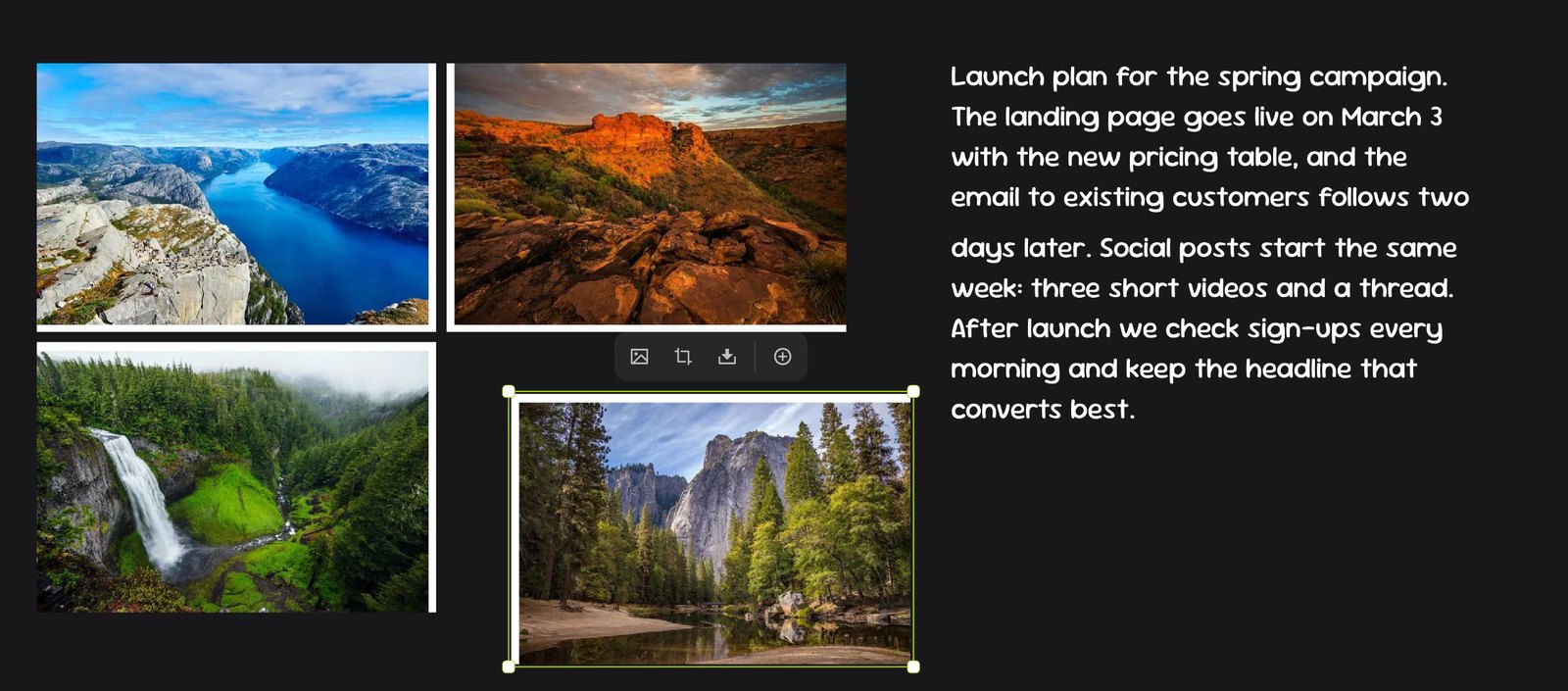
- Images. Each piece becomes its own image showing its part of the picture. Turn a grid of photos into separate photos, or cut a screenshot down to the parts you need. You can cut a piece again.
- Text. Write one long paragraph, then split it into two text boxes between any two lines. Both keep the font, size and color.
- Rectangles. Get two rectangles with the same color, border and label.
How to use it
-
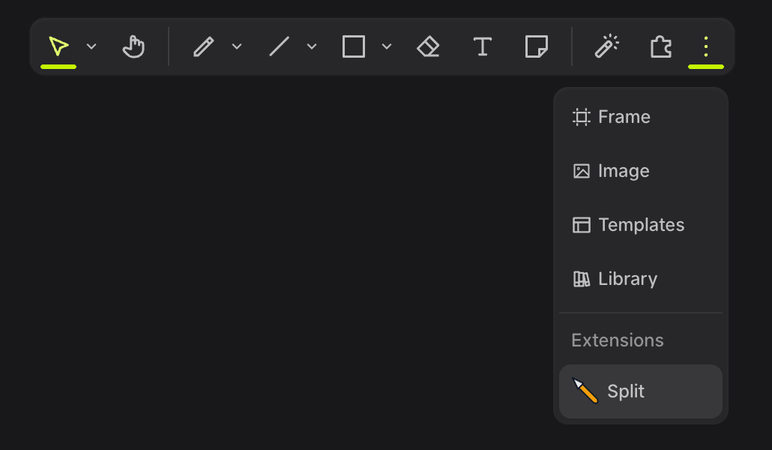
Open the ⋮ menu in the toolbar and pick Split under Extensions. Your cursor turns into a box cutter.
-
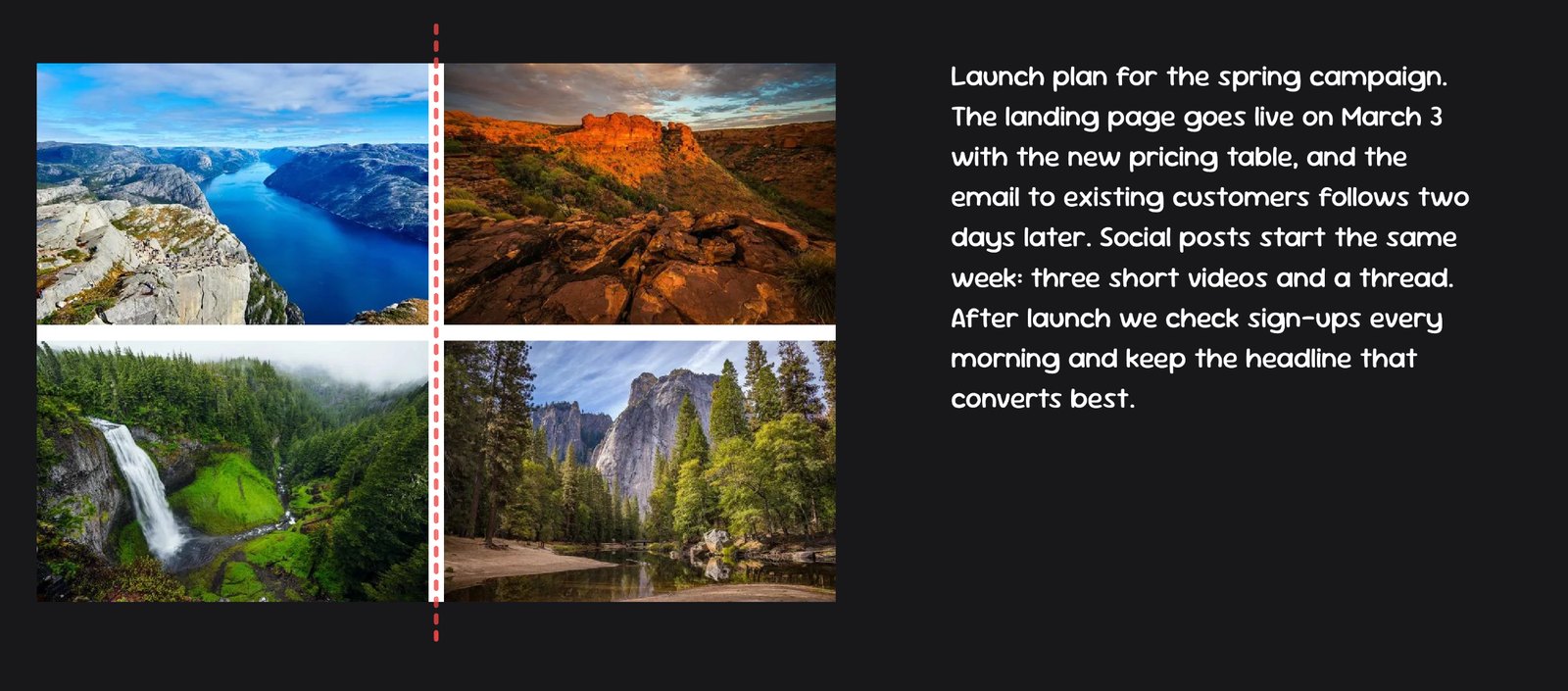
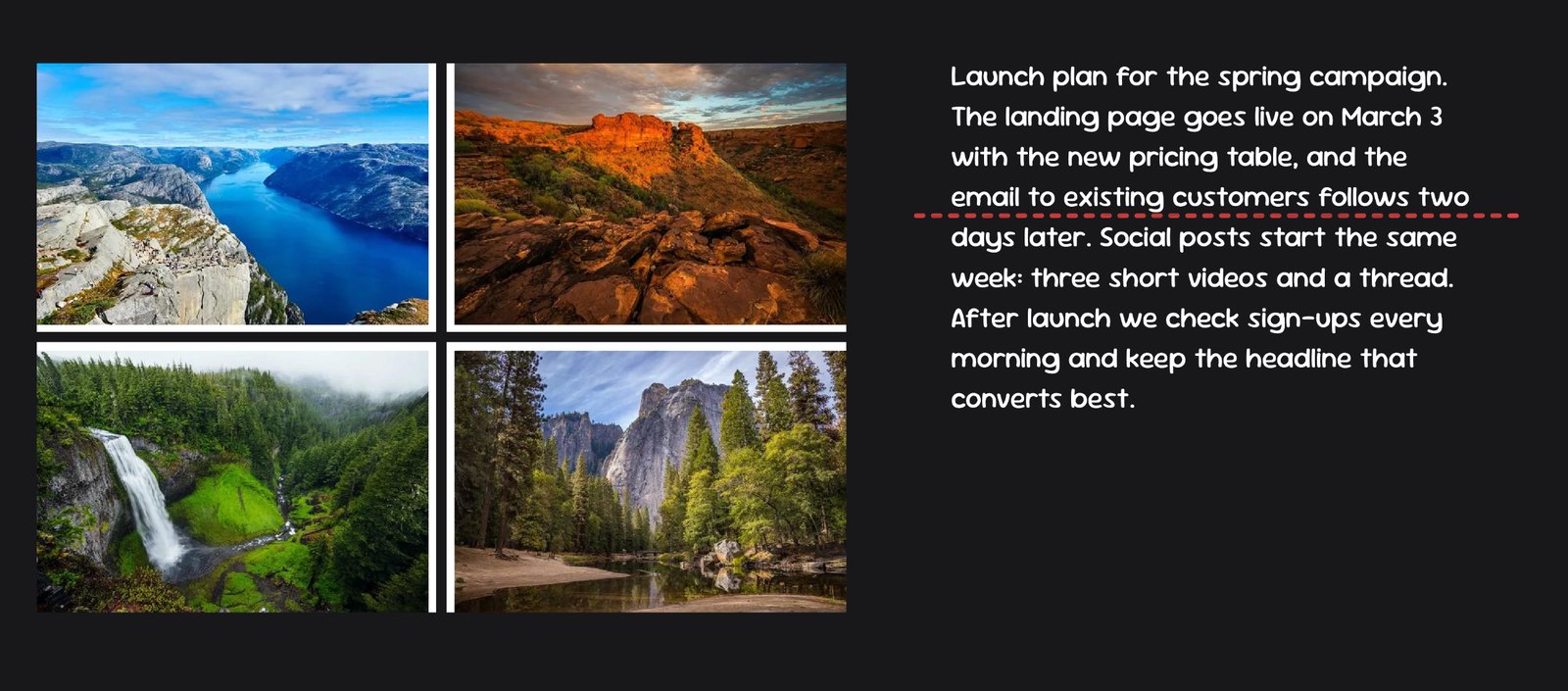
Press and drag across what you want to cut. A red dashed line shows where the cut will go. It is always horizontal or vertical: whichever direction you drag further decides which.
-
Let go. Everything the line crosses is cut in two, and the second piece moves a few pixels away from the first so you can see the cut.
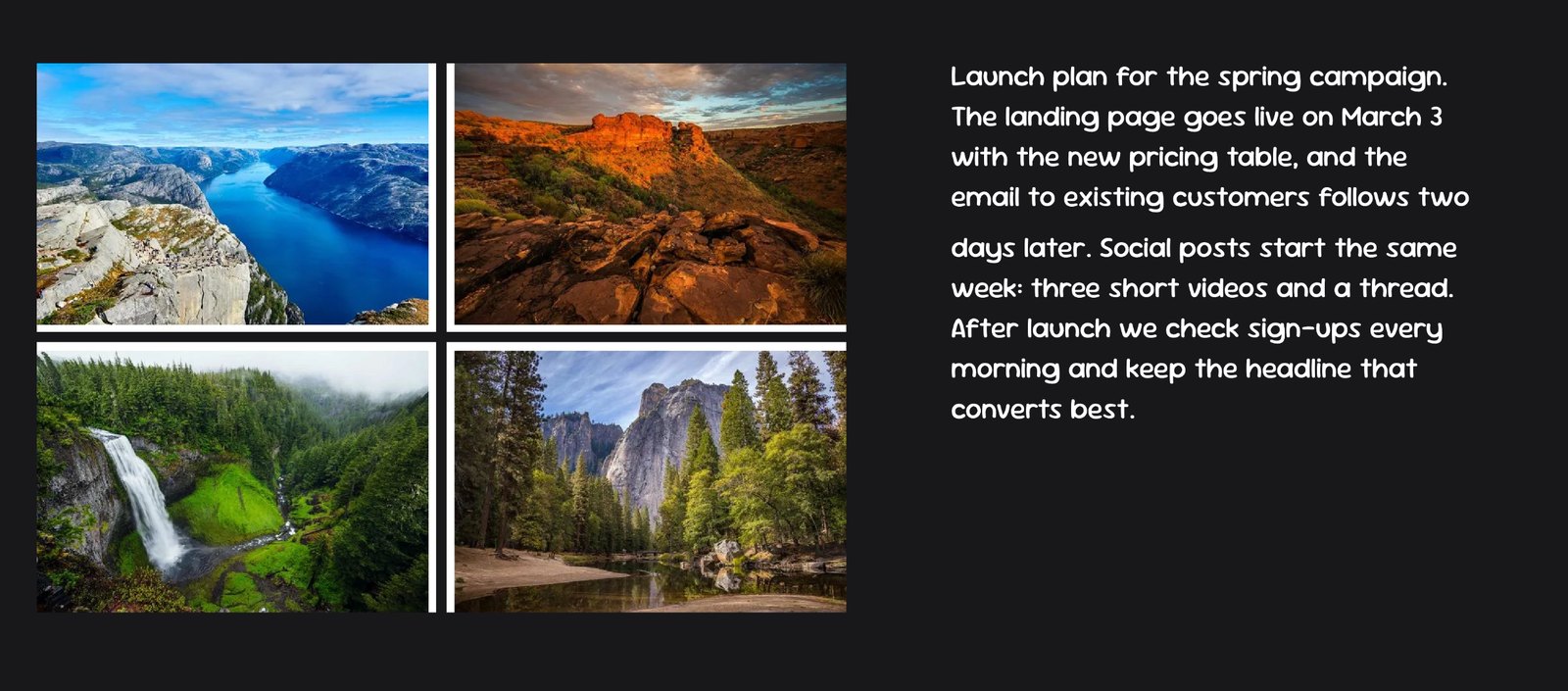
To split text, drag a horizontal line between two lines of it. The cut moves to the nearest gap between lines, so it never goes through a word.
When you're done, pick another tool, such as Select, to stop cutting.
Good to know
- Undo a cut by pressing undo twice.
- Text can only be cut horizontally. Bold, italic and links are removed from both halves.
- Rotated or locked elements are not cut.
- Very thin pieces are not made: if the line is closer than a few pixels to an edge, that element is left alone.
- Other elements are not cut: circles, diamonds, sticky notes, lines, arrows and drawings.
- People on the board with you see the cut pieces like any other edit.
Permissions
Split asks for Scene access. It uses it to find the elements under your cut line and to cut them. It does not read anything else, and nothing leaves your board.