
E2E Scenario Builder
Turn a written flow into a diagram on the board and generate E2E test scenarios.

E2E Scenario Builder — Drawdy extension
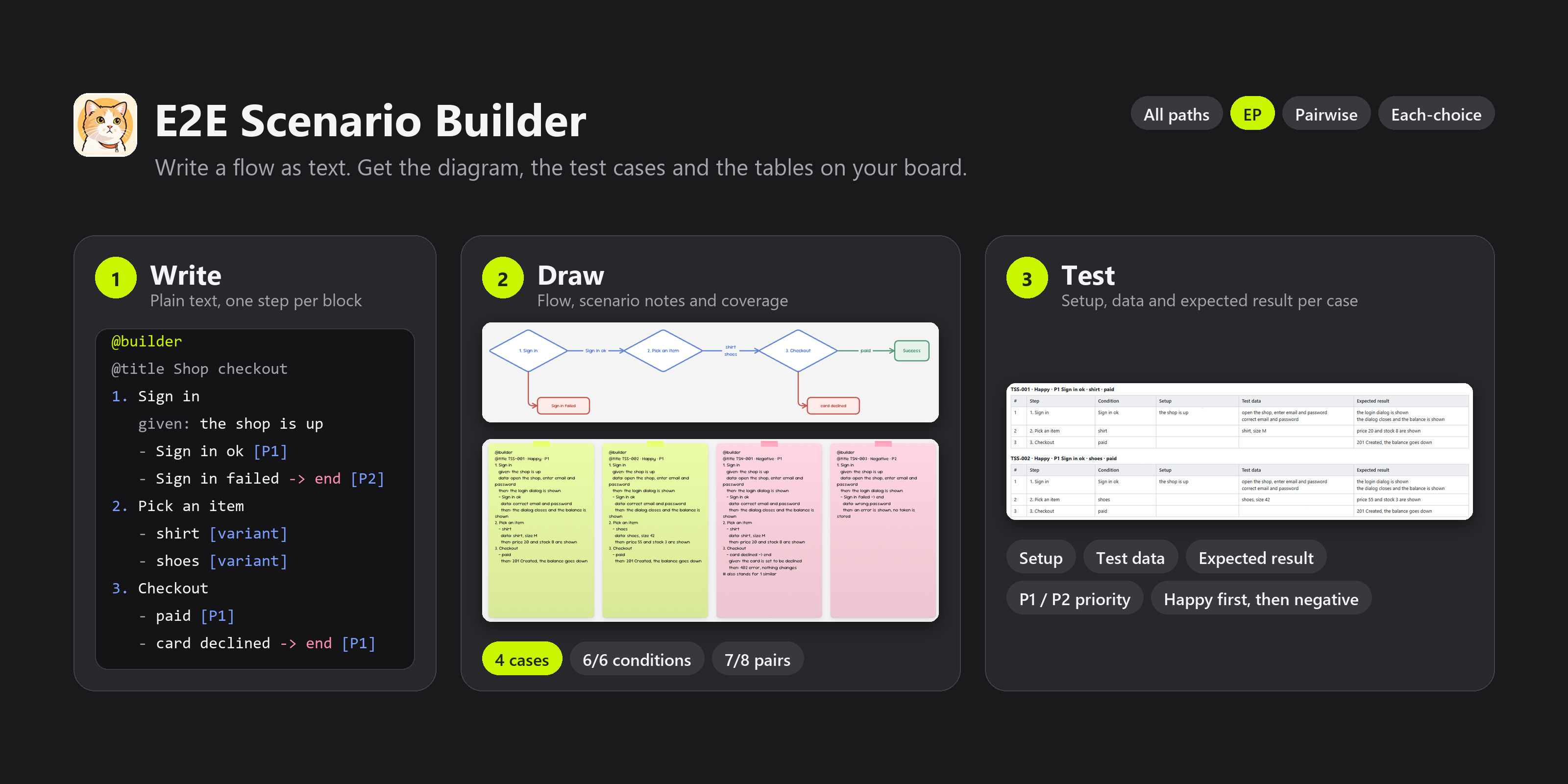
Write an end-to-end flow as plain text, and get the flow diagram and its test scenarios (happy, negative and loop) drawn on the board, with a table of the test cases of each scenario.
Install the extension, click its button on the right edge of the board, press a
Start with a template button to drop a ready-made flow note on the
board, edit it there, select it and press Flow + Scenarios. (Or write a flow in the
panel's paste box, or in any note, sticky note or text box, that starts with @builder.)
Contents
- Terms
- How to use
- Text syntax
- Scenario IDs
- How the scenarios are counted
- Modes
- Writing a flow that tests well
- Notes
- Development
- Credits
- License
@builder
@title Online shop: checkout

1. Authentication
   req: R-01
   given: the shop is up, the shipping fee table is Standard 5.00 and Express 12.00
   - Log in [P1, sets user]
     data: username user_001, password Passw0rd!
     then: 200 OK, the header shows "user_001", a session token is issued
   - Continue as guest [P2, sets guest]
     data: no account, email guest@example.com
     then: 200 OK, the header shows "Guest", no session token
2. Select Products
   req: R-02
   given: the catalog has SKU-001 Shirt 20.00 and SKU-002 Shoes 50.00, both in stock
   - Shirt [variant]
     data: SKU-001, quantity 1
     then: the product page shows price 20.00
   - Shoes [variant]
     data: SKU-002, quantity 1
     then: the product page shows price 50.00
3. Add to Shopping Cart
   - Added [P1]
     then: 201 Created, the cart item count goes up by 1, the cart line shows the SKU and its price
   - Out of stock -> end [negative]
     given: the stock of the product is 0
     then: 409 OUT_OF_STOCK, the cart item count does not change
The first three steps of the starter template (Start with a template drops all of it on the board). The whole text is under Text syntax.
Terms
| Word | Means |
|---|---|
| Flow | The whole business flow you write: steps, each with its choices |
| Scenario | One path through the flow, from the first step to where it ends: several test cases in a row. It is Happy when it completes the flow (loops included) and Negative when it ends early. IDs are TSS-04821 (happy) and TSN-00317 (negative): see "Scenario IDs" below |
| Test case | One step of a scenario with the choice taken there, and its setup (given:), test data (data:) and expected result (then:). It is one row of the table |
So a scenario is a chain of test cases, and the number the panel shows is the number of scenarios.
How to use
- Open the panel. Click the extension's button on the right edge of the board.
- Write a flow. The panel is small, so write on the board: press Start with a
template to drop a note with a ready-made online-shop checkout that uses every piece of
the syntax, explained in
#comment lines (they are ignored; delete them when done), and edit it there. Any note whose first line is@builderworks the same. You can also type in the panel's Paste or type text here box, or press Pull from selected note in it to fill the box from a note. While one flow note is selected, the panel shows that note's scenario counts, the flow check and a mode tip, updated as you edit it; with nothing selected it counts the paste box. - Watch the numbers. While you type, the panel shows the number of steps and of test scenarios in every mode (All, EP, Pairwise, Each-Choice), the problems found in the text (with their line) and in the flow.
- Pick the mode with the switch (All, EP, Pair, Each; EP is the default). Under it the panel says how many scenarios that mode makes, and warns above 50.
- Press a button.
| Button | Result |
|---|---|
| Flow | The flow diagram only. With a scenario note selected it reads Flow + Table: the flow of that scenario, and under it the table of that scenario |
| Scenarios | The scenario notes of the chosen mode, without the diagram |
| Flow + Scenarios | The flow diagram, then a frame of scenario notes whose header shows the counts of all four modes and how much of the flow the scenarios cover |
| Table | The test cases of each scenario, in order, as tables: one row per test case (step, condition, setup, test data, expected result) |
| Copy table | Copies those tables as tab-separated text to the clipboard, ready to paste into a spreadsheet |
What the buttons use
A selection on the board wins over the text left in the panel. The panel says what the buttons will use ("The buttons below will use ..."), the Table and Copy table labels follow it, and buttons that do not fit the selection are greyed out.
| Selected on the board | Flow | Scenarios | Flow + Scenarios | Table / Copy table |
|---|---|---|---|---|
| nothing, with a flow in the text box | on | on | on | all scenarios of the mode |
| nothing, text box empty | off | off | off | off |
a scenario note (TSS-… / TSN-…) | Flow + Table: that scenario | off | off | only the selected scenarios |
| a scenario frame | off | on (scenarios again, chosen mode) | off | all scenarios in the frame |
| a drawn flow frame | off | on (new scenarios) | on | scenarios of the chosen mode |
a note that starts with @builder | on | on | on | its scenarios |
| a table | off | off | off | Copy table copies that table |
Only notes that start with @builder are read. Any other note is left
alone, so the extension never spends time on notes that are not flows. (The text box
in the panel does not need the marker.)
What is drawn
- New results are placed in free space: under the selected note, or in view if nothing is selected. If something is already there, the result moves down.
- Scenario notes are text boxes filled with a colour: green = happy path, pink = negative, orange = loop. Each is as tall as its text needs.
They are ordered happy scenarios first, then negative, each by priority. IDs are
TSS-…(success) andTSN-…(negative), five digits. - Each scenario note is itself written in the flow syntax (
@builder, a@title TSS-04821 · Happy · P1, the steps and choices of that scenario with theirgiven:/data:/then:), so it can be selected and read back. - A lot of scenarios is laid out in more columns, so the frame stays about as wide as it is tall. There is no limit on the number of notes, but the panel warns when a mode makes more than 50.
- A table is one embedded page of the board. Drawdy's canvas catches the mouse over embedded pages, so a table cannot be scrolled or clicked on the board; it is drawn at its full height instead (worked out from the column widths, so there can be some empty space below it). Copy it with the Copy table button.
Text syntax
Everything can be written in the text, so no UI is needed. The words are English; the labels you write can be in any language.
This is the starter template, the note that Start with a template drops on the board. It is the standard example for everything below: the # lines explain each piece of the syntax as it is used, and the tables after it list the same pieces.
@builder
@title Online shop: checkout
# One template that shows the whole syntax. Lines starting with # are ignored.
# 1. Step           a step: a number, then its name
# - choice          a choice at that step (a step may have many)
# [P1] [P2] [P3]    priority: the lowest P on a scenario is its priority
# given: data: then:  setup, test data, expected result (before a choice = the step)
#                   then: is a value to assert (a number, status or code), never just "works"
# req: R-01         a requirement id, on a step or a choice
# -> end            the flow stops here: a negative scenario
# -> loop to step 2 max 2   go back to step 2, at most 2 rounds
# [distinct]        on a loop: a round offers only choices not picked yet
# [variant]         choices marked variant do not multiply each other in EP
# [negative]        a choice that fails but the flow goes on
# [sets x]          this choice tags the path with x
# [needs x]         a choice only a path with tag x can take (and, or, not / !)
# Delete the comments and the steps you do not need.

1. Authentication
   req: R-01
   given: the shop is up, the shipping fee table is Standard 5.00 and Express 12.00
   - Log in [P1, sets user]
     data: username user_001, password Passw0rd!
     then: 200 OK, the header shows "user_001", a session token is issued
   - Continue as guest [P2, sets guest]
     data: no account, email guest@example.com
     then: 200 OK, the header shows "Guest", no session token
2. Select Products
   req: R-02
   given: the catalog has SKU-001 Shirt 20.00 and SKU-002 Shoes 50.00, both in stock
   - Shirt [variant]
     data: SKU-001, quantity 1
     then: the product page shows price 20.00
   - Shoes [variant]
     data: SKU-002, quantity 1
     then: the product page shows price 50.00
3. Add to Shopping Cart
   - Added [P1]
     then: 201 Created, the cart item count goes up by 1, the cart line shows the SKU and its price
   - Out of stock -> end [negative]
     given: the stock of the product is 0
     then: 409 OUT_OF_STOCK, the cart item count does not change
4. Calculate Total
   then: the subtotal is the sum of the prices in the cart: 20.00 (shirt), 50.00 (shoes) or 70.00 (both)
5. More product?
   - Add another product -> loop to step 2 max 2 [distinct]
     then: the product list opens again, the cart item count is still 1 after round 1
   - No more product [P1]
     then: the page moves to shipping, the cart item count is unchanged (1 or 2)
6. Select Shipping Methods
   - Standard [P1]
     then: the shipping method is Standard, the fee is 5.00
   - Express (members only) [P2, needs user]
     then: the shipping method is Express, the fee is 12.00
7. Add shipping Charge
   data: weight 1 kg
   - Charge added [P1]
     then: the shipping charge equals the fee of the method: 5.00 (Standard) or 12.00 (Express)
   - Free shipping (members only) [P2, needs user]
     data: promo code FREESHIP
     then: the shipping charge is 0.00 and the order total equals the subtotal
8. Enter Shipping Info
   - Use saved address (members only) [needs user]
     data: address id addr_001, 12 Main St, Springfield, 12345
     then: the shipping address is 12 Main St, Springfield, 12345
   - Type a new address [P1]
     data: 99 Oak Ave, Austin, TX, 73301
     then: the address check returns valid, the shipping address is 99 Oak Ave, Austin, TX, 73301
9. Select Payment Methods
   - Saved card (members only) [needs user]
     data: the card saved on user_001, ending 4242
     then: the payment method shows "Visa ending 4242"
   - New card [P1]
     data: card 4111 1111 1111 1111, expiry 12/30, CVV 123
     then: the payment method shows "Visa ending 1111"
   - Cash on delivery (guests only) [needs !user, sets cod]
     then: the payment method is COD, the amount due on delivery is the order total
10. Verify Credit Info Complete?
   req: R-03
   - Payment succeeded [P1]
     then: the order status is CONFIRMED, a receipt email with the order number and the total is sent
   - Payment failed -> end [P2, needs !cod]
     data: test card 4000 0000 0000 0002
     then: the gateway returns CARD_DECLINED, the order status stays PENDING_PAYMENT, the amount charged is 0.00
Lines
| A line that starts with | Is |
|---|---|
@builder | the marker: the note is a flow (must be the first line) |
@title name | the title of the drawn frame |
1. or 1) (a number) | a step. The number is how loop to step refers to it |
- (also *, •) | a condition of the step above |
given: data: then: req: | a field: setup (precondition), test data, expected result, requirement id. The older names setup: and expect: are still read. Several requirement ids go on one line, separated by commas. The scenario frame header lists each requirement with the scenarios that pass it (a step's req counts for every scenario through the step, a choice's for every scenario that takes it) and names any requirement the chosen mode leaves out |
# or // | a comment (ignored) |
A field belongs to the step if it comes before the step's first condition, and to
the last condition above it otherwise. A value can go on over the next lines;
start such a line with \ if it would look like a step, a condition or a field
(\- not a condition). Blank lines are fine anywhere. Indentation is never
needed: a note may not keep it, so a line is told apart by how it starts.
What a condition does
Put one of these after the label of a condition (- label -> something). The
words are end, loop, next, in any letter case; -> can also be
written → or =>.
| Write | Meaning |
|---|---|
- label | continue to the next step (a normal path) |
- label -> end | negative: the flow ends here |
- label -> loop | go round the same step again |
- label -> loop to step 3 | go back to step 3 (the step number written before the step's name) |
- label -> loop max 2 | limit the rounds: max 2. Default 1, up to 9. Works with both forms of loop, e.g. -> loop to step 3 max 2 |
- label -> next | continue (the default, written out; use it with [negative]) |
Options
Optional, in square brackets at the end of a condition, separated by commas.
| Write | Meaning |
|---|---|
P1 P2 P3 | priority of the scenario: a scenario takes the most important (lowest) number on its path, so a path with a P1 choice is P1. Choices without a P do not count; no P on the whole path = P2 |
variant | this choice does not multiply with the others, so equivalence partitioning keeps one representative scenario |
negative | a failing choice that does not end the flow (end is already negative) |
distinct | on a loop to step N: the next round offers only the choices not taken yet at the step it goes back to (the steps after it are free), and rounds that differ only in order count once. For "add another item": - add more -> loop to step 3 [distinct] gives A, B, A+B, not A+A or B+A as well. Ends and loops at those steps stay available |
sets lv1 | marks the path with a tag (several: sets lv1 lv2) |
needs lv1 and premium | only reachable if the path already has these tags. Words: and, or, not (or !). or binds tighter than and, and there are no brackets: needs !premium or lv2 and needs premium and lv1 |
The one-line form
The earlier short form still works, for small flows. Steps are separated by >,
the conditions of a step go in parentheses separated by |:
@builder
Select Products (Shirt | Shoes) > Add to Shopping Cart (Added | !Out of stock) > Select Shipping Methods (Standard | Express)
| Write | Meaning |
|---|---|
!label | negative, the flow ends |
-label | negative, the flow continues |
~3 label | go back to step 3 (~ alone repeats the same step); !~4 / -~4 is negative and loops |
label [P1 tag=x need=a,b variant max=2] | options. need: , = and, / = or, ! = not. max = rounds of a loop |
@ep @all @pair @min (first word) | the mode, instead of the panel's switch |
A text is read in the block form when any line starts with a number or a -
bullet, and as the one-line form otherwise.
Reading problems
A problem in the text is shown with its line (in the panel while you type), for example Line 5: Unknown option "varient" in [ ] (did you mean variant?).
The extension points out unknown words with the closest known one, a loop to step pointing to a
step that does not exist, repeated or out-of-order step numbers, a condition with
no step, a field with a typo, and so on.
Scenario IDs
A scenario's number comes from what it does: the names of the steps it passes and the choices it takes, in order (letter case and spaces around them do not count). So the ID does not move when you change the flow somewhere the scenario does not go: add a choice, add a step it never reaches, put lines in another order. That lets you keep the IDs in a test management tool and regenerate the board later.
A scenario does get a new ID when it changes: renaming a step or a choice it passes, or adding a step in its way, makes it a different test. The numbers are not in order and have gaps; the board lists scenarios in their own order (Happy first, then by priority). If two scenarios would get the same number, the one whose description sorts later takes the next free number.
Boards drawn by earlier versions show TSS-001-style IDs; they still work, as does
any TSS-/TSN- number.
How the scenarios are counted
All walks every path the flow allows, from step 1 to where it ends. Here is a small flow to count by hand:
1. Sign in
- ok
- failed -> end
2. Pick an item
- shirt
- shoes
- sold out -> loop to step 2 [negative]
3. Pay
- paid
- declined -> end
flowchart LR
    S1["1. Sign in"] -->|"ok · 8 paths"| S2["2. Pick an item"]
    S1 -->|"failed · 1 path"| E1(["end"])
    S2 -->|"shirt · 4"| S3["3. Pay"]
    S2 -->|"shoes · 4"| S3
    S2 -.->|"sold out ↻ · 4"| S2
    S3 -->|"paid · 4"| H(["flow complete"])
    S3 -->|"declined · 4"| E2(["end"])
The number on an arrow is how many of the scenarios use that choice. There are 9
scenarios: 4 Happy (they reach the end of step 3) and 5 Negative (they stop on an
-> end).
To check a count yourself, work backwards from the last step. Let P(step) be the number of ways to finish from that step; a choice adds 1 if it ends the flow, or P(next step) if it continues:
- Step 3: paid → 1 (flow complete) + declined → 1 (end) = 2
- Step 2, after the loop has been used (the
sold outchoice is no longer offered): shirt → 2 + shoes → 2 = 4 - Step 2, loop still available: shirt → 2 + shoes → 2 + sold out → 4 = 8
- Step 1: ok → 8 + failed → 1 = 9
What each part of the syntax does to the count:
| In the flow | Effect |
|---|---|
| A step with several choices | one branch per choice; the branches multiply with the steps after them |
| A step with no choices | passes through; no effect |
-> end | that branch stops there and is one Negative scenario, however many steps remain |
-> loop to step N | goes back and takes that step again. Each use counts against max (default 1); once used up, the choice is simply no longer offered, it does not end the scenario |
sets / needs | a choice with needs is offered only if the path already carries the tag; a tag stays for the rest of the path. Choices that cannot be offered are cut, together with every scenario through them |
distinct | on a loop back to a step: the choices already taken at that step are not offered again, and rounds that differ only in order count once |
sets / needs is what keeps impossible paths out. In this flow, only 2 of the 4
combinations can happen:
1. Account
- level 1 [sets lv1]
- level 2 [sets lv2]
2. Buy a premium item
- allowed [needs lv2]
- blocked -> end [needs lv1]
Level 1 can only be blocked, level 2 can only be allowed, so there are 2 scenarios (1 Happy, 1 Negative) instead of 4.
The other modes pick from these scenarios (see Modes below). They never invent a scenario: EP, Pair and Each give a subset of what All lists.
Modes
Choose the mode with the panel's switch.
| Mode | What you get |
|---|---|
| EP (equivalence partitioning) | one representative per group of equivalent paths. Only choices marked variant are grouped, so without any variant EP stays close to All; the panel says so |
| All | every path that can actually be walked. Past 1,000 paths it lists the first 1,000 and adds one path for each choice and pair they missed, so the other modes can still cover them; the flow check says so |
| Pairwise (2-wise) | every choice, and every pair of choices that can meet on a path, is in at least one scenario |
| Each (each-choice, 1-wise) | a small set of scenarios that touch every choice, Happy paths first. Not always the smallest possible |
The header of the scenario frame always shows the counts of all four modes, so
you can compare them, and the panel and the header give a TIP: for this flow:
- All has 30 scenarios or fewer: run them all.
- No choice is marked
variant: EP stays close to All, so use Pair (every pair of choices) or Each (a quick pass), or mark interchangeable choicesvariant. - Otherwise: EP for regression by your
variantgroups, Pair when choices at different steps affect each other, Each for a smoke pass.
What each mode guarantees
"Coverage" means something different in each mode, and only All covers every path.
The header of a scenario frame prints the coverage it measured against All
(choices, loop ends and pairs, as x/y), then either OK: every choice … is covered or MISSING … with the names of what is left out, so you do not have to
take it on trust. The panel shows an ERROR if any mode ever misses what it promises
(it should not happen; it is a safety net).
| Mode | How it picks | Always covers | Does not promise |
|---|---|---|---|
| All | every path, up to 1,000 (past that: the first 1,000, plus a path found for each choice, loop end and pair the first 1,000 missed) | every path while under 1,000 | every path past 1,000 |
| EP | one scenario per group of paths that use the same choices once variant choices are left out (order ignored), then one more for any choice or loop end still uncovered | every choice, every loop at its full max, and every group your variant marks define | every pair of choices |
| Pairwise | greedy: take the scenario that covers the most choices, loop ends and pairs not yet covered (ties: higher priority, then shorter), until nothing is left | every choice, every loop at its full max, and every pair of choices that can share a path | three choices together, order, every number of rounds in between |
| Each | greedy, taking Happy paths first, then paths with at most one failing choice, then any, until every choice and loop end is covered | every choice, every loop at its full max | any two choices together, every number of rounds in between |
So every mode reaches 100% of what it promises, but only All reaches 100% of the
paths. A "loop end" is a loop with max 2 or more taken its full max times: every
mode has at least one scenario that does it, because the last round allowed is a
boundary worth testing. The rounds in between (for max 3: 1 and 2 rounds) are only
in All.
The math
Counting paths (All). Work backwards from the last step, as in "How the scenarios
are counted". With no end, loop or needs, the number of paths is the product of
the number of choices at each step (a step with none counts as 1).
Loops. A loop choice with max m can be taken at most m times on a path, so a
step is passed at most m + 1 times. Going round a step with k choices, whose
steps in between can be passed in q ways, gives (k·q)^r paths for r passes, added
up for r from 1 to m + 1.
distinct. The same loop with distinct allows each choice at the first step
only once and counts a set of rounds once whatever the order, so r passes give
C(k, r)·q^r paths (C is "k choose r", the number of ways to pick r different choices):
scenarios = Σ over r = 1 … min(k, m + 1) of C(k, r) · q^r
For k = 3 choices, m = 2 and nothing in between (q = 1): 3 + 3 + 1 = 7, against
3 + 9 + 27 = 39 without distinct.
EP. The number of scenarios is the number of different sets of non-variant
choices on the paths (a variant choice that sets a tag another choice on the path needs still counts),
plus a few more where a choice would otherwise be left out.
Each and Pairwise (greedy set cover). Each scenario "covers" some items: its choices (Each), or its choices and every pair of its choices (Pairwise). Greedy keeps picking the scenario that covers the most items not covered yet, and stops when all items are covered. It always stops with full coverage, because every item is on some scenario. Finding the smallest set is a hard problem (NP-hard), so greedy can pick more than the minimum. For Pairwise, which is plain greedy, the result is at most about 1 + ln d times the minimum, where d is the most items one scenario covers. Each prefers readable scenarios first, so it has no such bound.
To check a size by hand (a flow without loops):
- Each needs at least ⌈choices ÷ the most choices on one path⌉ scenarios.
- Pairwise needs at least as many scenarios as there are pairs of choices that can meet between the two steps with the most such pairs (a path takes one choice per step, so it covers one pair of those two steps).
These formulas are checked by the tests (test/oracle.test.ts).
Flow check
The panel and the scenario frame list problems found in the flow: a step no scenario
can reach, a condition no scenario uses, a needs that refers to a tag nobody sets, a
loop that points forward, duplicate or empty labels.
Writing a flow that tests well
The tool walks every path the flow allows and copies each step's fields into the scenario. It does not know your system, so a few things stay with the writer:
- Test data must hold on every path through it. A scenario puts together the
given:/data:of every step and choice it passes. If step 2 says "account test-user-001" and a choice at step 7 says "account test-user-premium", a scenario through both lists two accounts. Write data that fits every path that can reach it, or move it to the choice that decides it (and usesets/needsto keep paths that do not fit apart). - One choice is one outcome for the whole step. If the system handles several things one by one (each line of a cart is sent as its own request), a mixed result such as "line 1 succeeds, line 2 is refused" only appears if you write it as its own choice.
- Only allow what can really happen. A choice reachable on paths where it cannot
occur makes scenarios nobody can run. For example, a "gave up after the last retry"
ending should need the retry first:
- provider down -> loop max 2 [negative, sets retried]and- retries used up -> end [needs retried]. distinctdrops the order. Use it when picking A then B tests the same thing as B then A. If the order matters (the first item fails, the second is checked next), leave it out.- A loop runs once more by default.
-> loop to step 3withoutmaxallows one extra round; the flow diagram shows the limit asup to 1 time. - Happy can include a failure on the way. A scenario that takes a
[negative]choice and still completes is Happy; its title saysvia negative.
Notes
- The flow is kept in the
metaof the drawn frame, so scenarios can be regenerated later by selecting that frame. - Permissions:
dom(the button and the window) andscene(reading the selection and drawing on the board). - This version of Drawdy lets an extension have one toolbar button.
Development
What the extension must do is written in specs/, one file per
area (panel, driver, calculation, syntax, board output, testing). The specs are the
source of truth: a change in behaviour changes the spec in the same commit, and tests
name the rules they check (CALC-17).
npm run dev        # dev server for "Add extension dev server" in Drawdy
npm test           # tests: text syntax, scenarios, tables, the buttons (see below)
npm run gen:editor # rebuild the pages embedded in src/ (runs before dev and build)
Tests
npm test needs no browser and no extra packages. GitHub Actions runs the same checks
(plus the typecheck, the build, and that src/panelHtml.ts matches the panel page) on
every push and pull request:
test/syntax.test.ts: the text syntax, the scenario counts, notes and tables.test/driver.test.ts: the driver against a small fake Drawdy host (an in-memory scene), and the panel page against a stub DOM. It checks what each button does for each kind of selection (scenario note, scenario frame, flow frame, table,@buildernote, nothing), the copy text, where a table is placed, and which buttons are on.test/specs.test.ts: the specs themselves: rule IDs are unique and every rule a test names exists.npm run spec:coveragelists the rules no test names yet.test/oracle.test.ts: the scenario generator against a second, independent enumerator on random flows, plus checks that EP, Pair and Each keep every choice and pair, anddistinctagainst its closed form.
These tests do not see how things look, or what Drawdy itself does. Before a release, check by hand in Drawdy (about five minutes):
- Add the dev server, allow the permissions, click the extension's button: the panel opens in English.
- Type a flow with
given:/data:/then:: the counts and the "Mode EP: N scenarios" line appear; a typo showsLine N: .... - Flow + Scenarios: a flow frame and a scenario frame appear, happy scenarios first.
- Select one scenario note: the line says "1 scenario note(s) selected", Flow reads Flow + Table, Scenarios and Flow + Scenarios are greyed out. Press Table and Flow + Table: one table, and the scenario's flow with its table.
- Select the scenario frame and press Copy table, then paste into a spreadsheet: one row per test case, a Scenario column first.
- Select a table and press Copy table: it copies that table.
- Press Start with a template: a yellow note that starts with
@builderappears in view and the camera flies to it; a second press puts the next note below the first, not on top. Select a note and press Flow + Scenarios: a flow and scenarios are drawn. Fold and unfold Paste or type text here. - Speed with a big flow. Paste this into a new note (it has more than 1,000
paths), select the note and type in it:
@builderthen ten steps1. S0…10. S9, each with- a,- b,- c,- d. While typing, the counts in the panel fade and come back about a second after you stop, with "counted in … s" if it took long. Drawdy must stay responsive while you type and while it counts (if the whole page freezes for a moment, the extension runs on Drawdy's main thread: report it). Then press Flow + Scenarios: it should not wait again for the count.
src/syntax.ts is the only place that reads the text syntax, so the panel and
the board actions always agree. gen:editor only embeds editor/panel.html
into src/panelHtml.ts.
Credits
The scenario generation (paths, equivalence partitioning, pairwise, each-choice and flow checks) is the author's own work, written for this extension.
License
MIT © 2026 PurrCat101. You can use, change and share this extension freely; keep the copyright line and the license text with every copy, which is how the author gets credit.